.avif)

Blog
Read more Articles
Keep up to date with medspa marketing strategies.

If your clinic sells hormone therapy, medical weight loss, peptides, or memberships, you should know exactly how much each patient has spent with you. Tracking lifetime value (LTV) inside GoHighLevel lets you identify your most valuable patients and reward them automatically, like sending a perk the moment someone crosses $5,000 in spend.
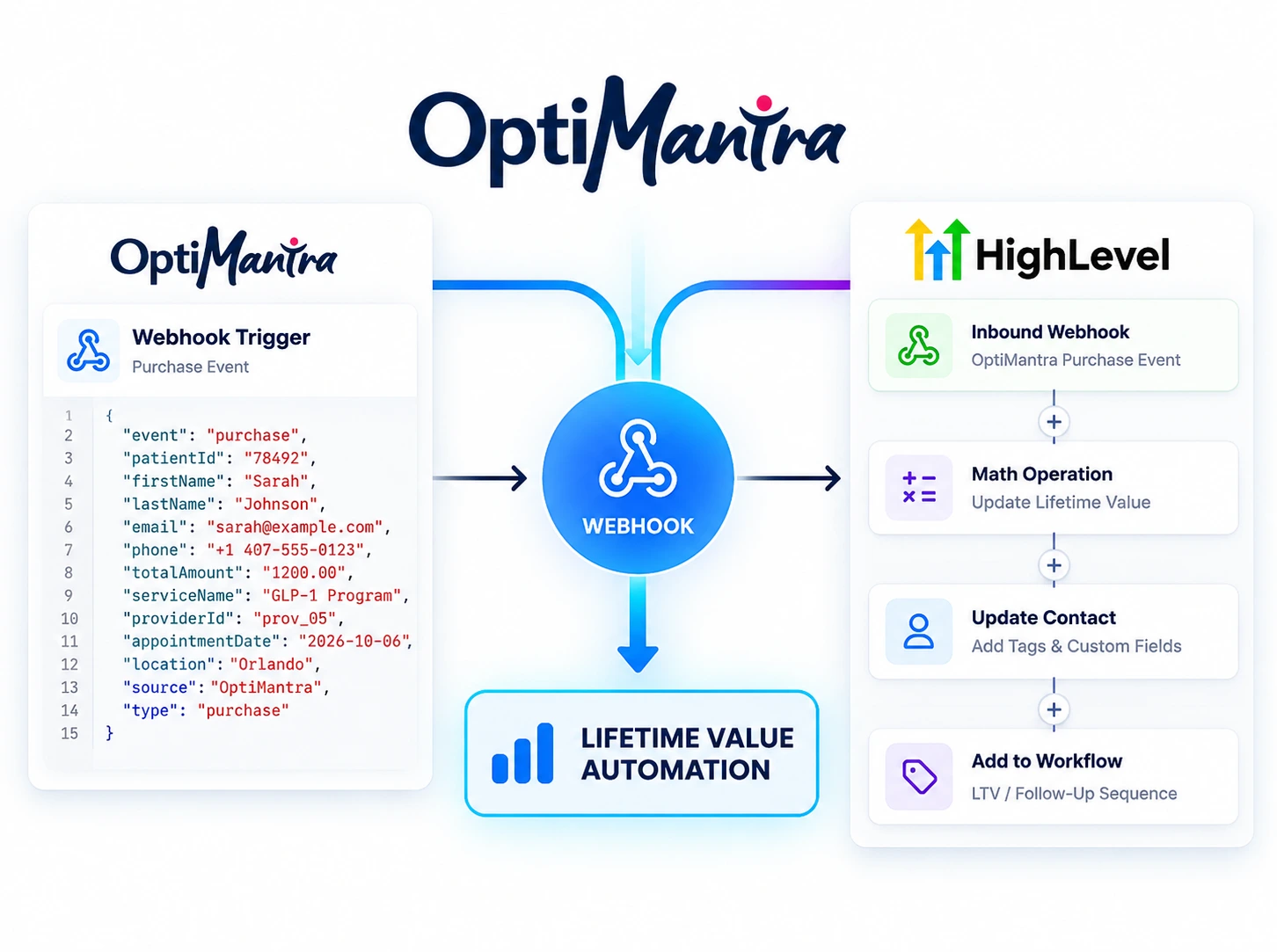
The build will use Go High Level and the EMR, Optimantra. We have a guide for connecting optimantra to Go High Level using webhooks. This build takes two workflows.
In the Automations tab, create a folder called "LTV Tracker" so everything stays in one place.
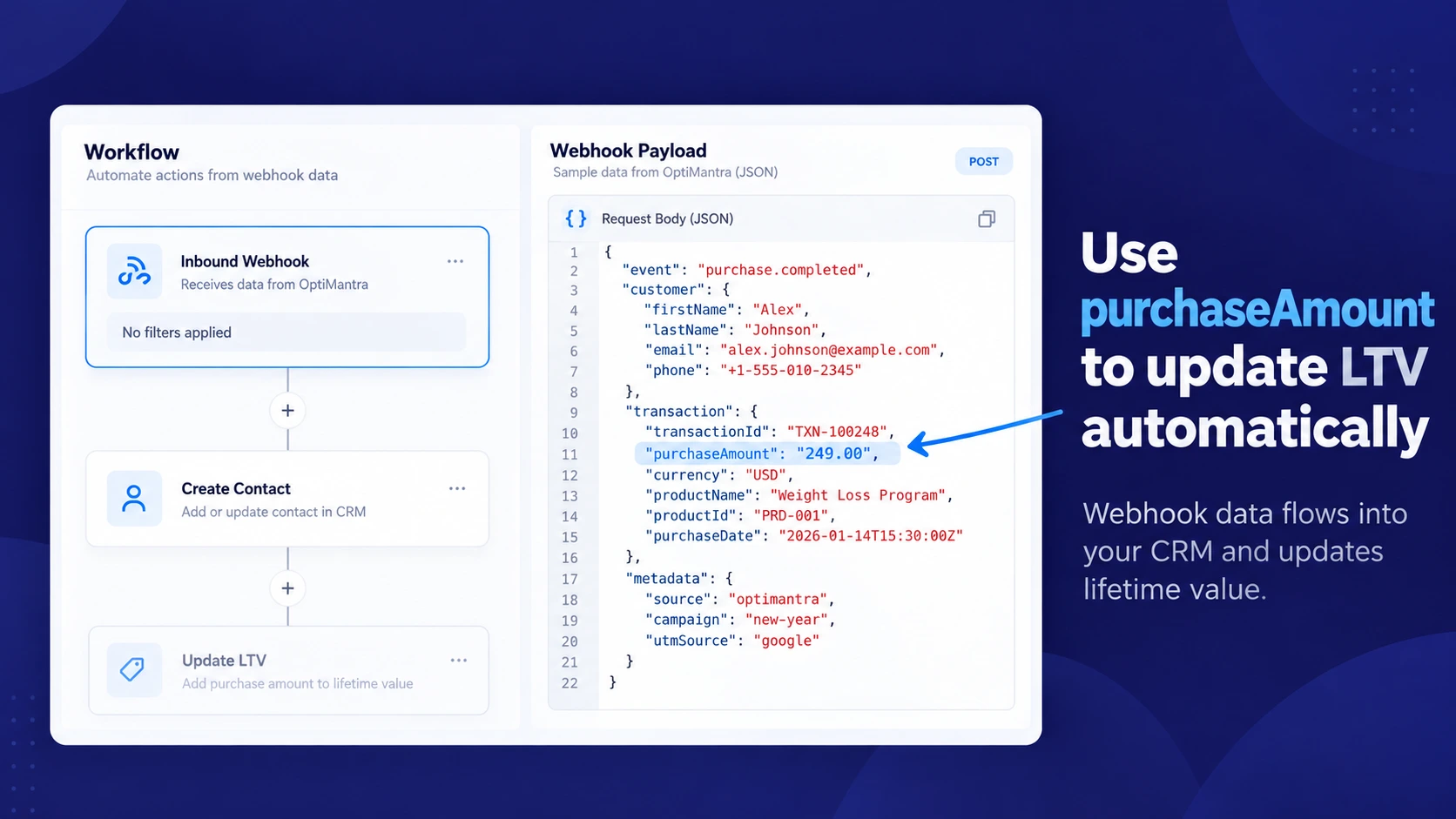
Create a workflow named after your billing source, such as "Optimantra Webhook," and set the trigger to Inbound Webhook. GHL generates a URL. Paste it into your EMR or payment processor, wherever the charge actually happens, so a payload fires every time a patient pays.
The payload must include name, phone, email, and the amount charged. GHL matches contacts by email or phone, so those need to match your GHL records or you'll end up with duplicate contacts and split totals. Run a test payment and GHL will prompt you to map each field to the contact.
In Settings > Custom Fields, create a Number field for contacts called "Lifetime Spend." It has to be a number type; a text field won't work with math.
Back in the webhook workflow, add a Math Operation action. Set the type to Custom Field, select Lifetime Spend, set the operator to Add, and set the value to dynamic using the amount field from your webhook payload. Every payment now adds to the running total.
In the workflow settings, turn on Allow Re-Entry. Without it, a patient's second purchase never runs.
That's LTV tracking done. Open any contact and Lifetime Spend shows in their contact fields.
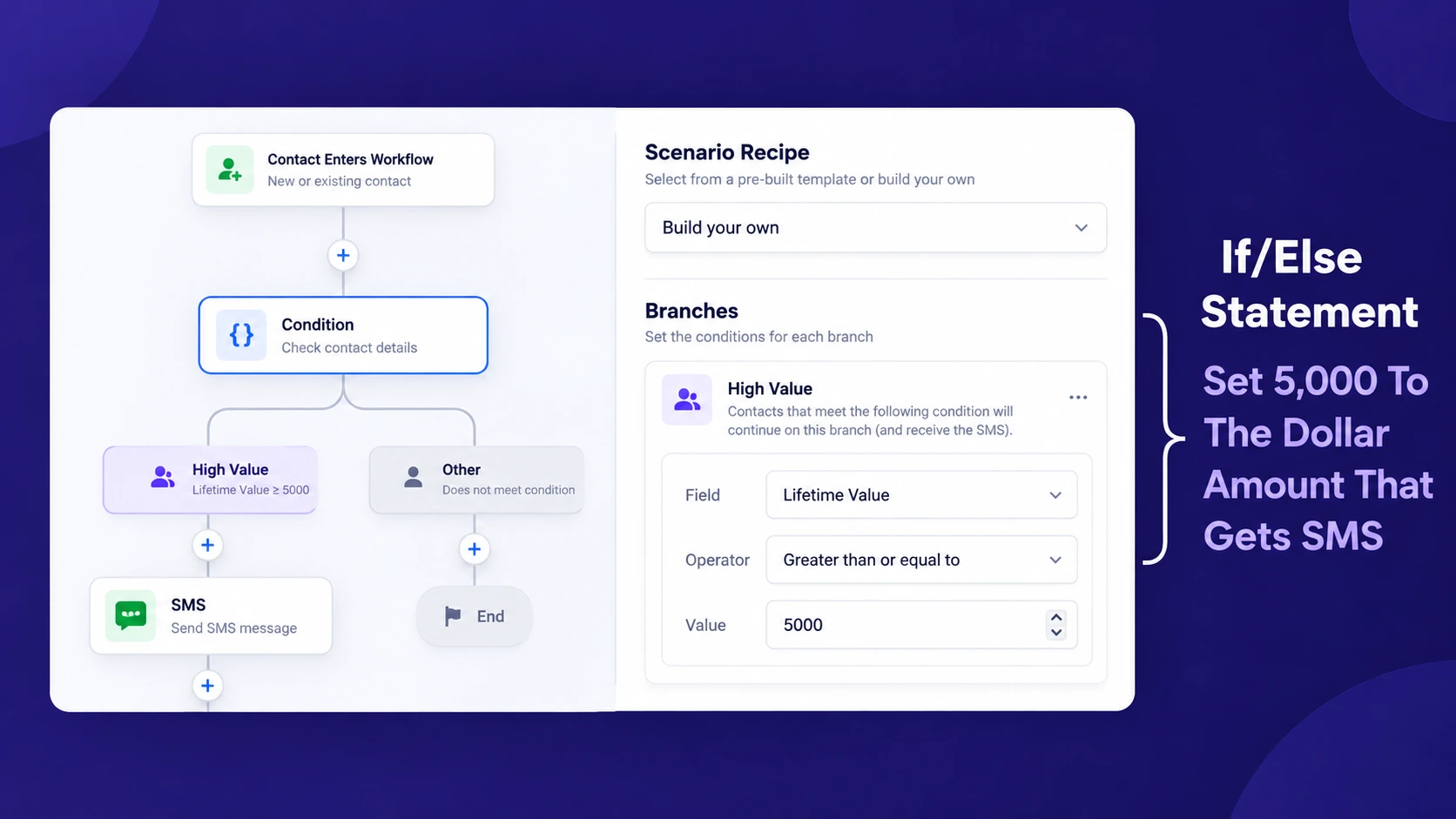
Create a second workflow called "LTV Checker." Add an If/Else step with two conditions: Lifetime Spend is greater than your threshold (say $5,000) AND tags do not include "5k Promo Received." On the Yes branch, send the promotion, then add the "5k Promo Received" tag. The No branch does nothing. Turn on Allow Re-Entry here as well.
The tag is what stops a patient from receiving the same promotion on every purchase after they cross the threshold.
At the end of the webhook workflow, add an Add to Workflow action pointing to LTV Checker. Now every payment updates the total and immediately checks it against your reward tier.
For refunds, duplicate the webhook workflow for refund events and change the operator to Subtract.
From here you can add more tiers, build a top-spenders smart list, or pull Lifetime Spend into your reporting. If you want help building out your automation system, reach out to us.
If you want to skip the technical setup or need custom workflows built specifically for your clinic, NexaMed is the industry leader in OptiMantra and GoHighLevel integrations. From compliant data routing to advanced LTV tracking, we make sure your systems communicate seamlessly without missing a beat. Visit nexamed.us/book to book a call with our team today.
You’ve outgrown "basic" marketing. Nexamed builds the advanced lead-gen infrastructure your med spa needs to capture high-ticket patients and scale without the manual mess.
Keep up to date with medspa marketing strategies.